Documentation
Installing Programs
OPL supports open-in-place for Psion installers (SIS files), allowing you to install programs directly from iCloud Drive using the Files app on your iPhone or iPad.
-
Add the installer to iCloud Drive, or download it directly to your iPhone.
-
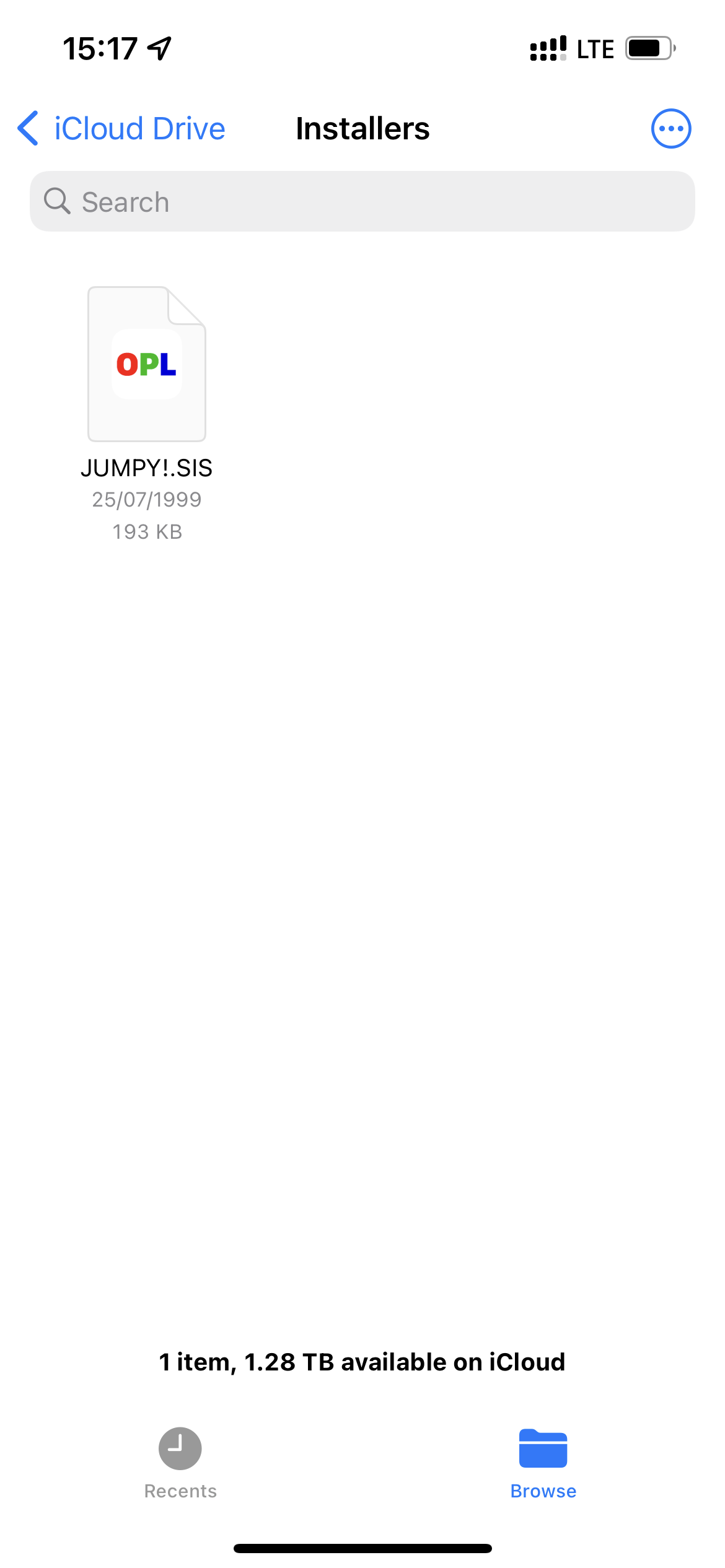
Navigate to the installer in the iOS Files app, and tap on the installer (
JUMPY!.SISin the example): -
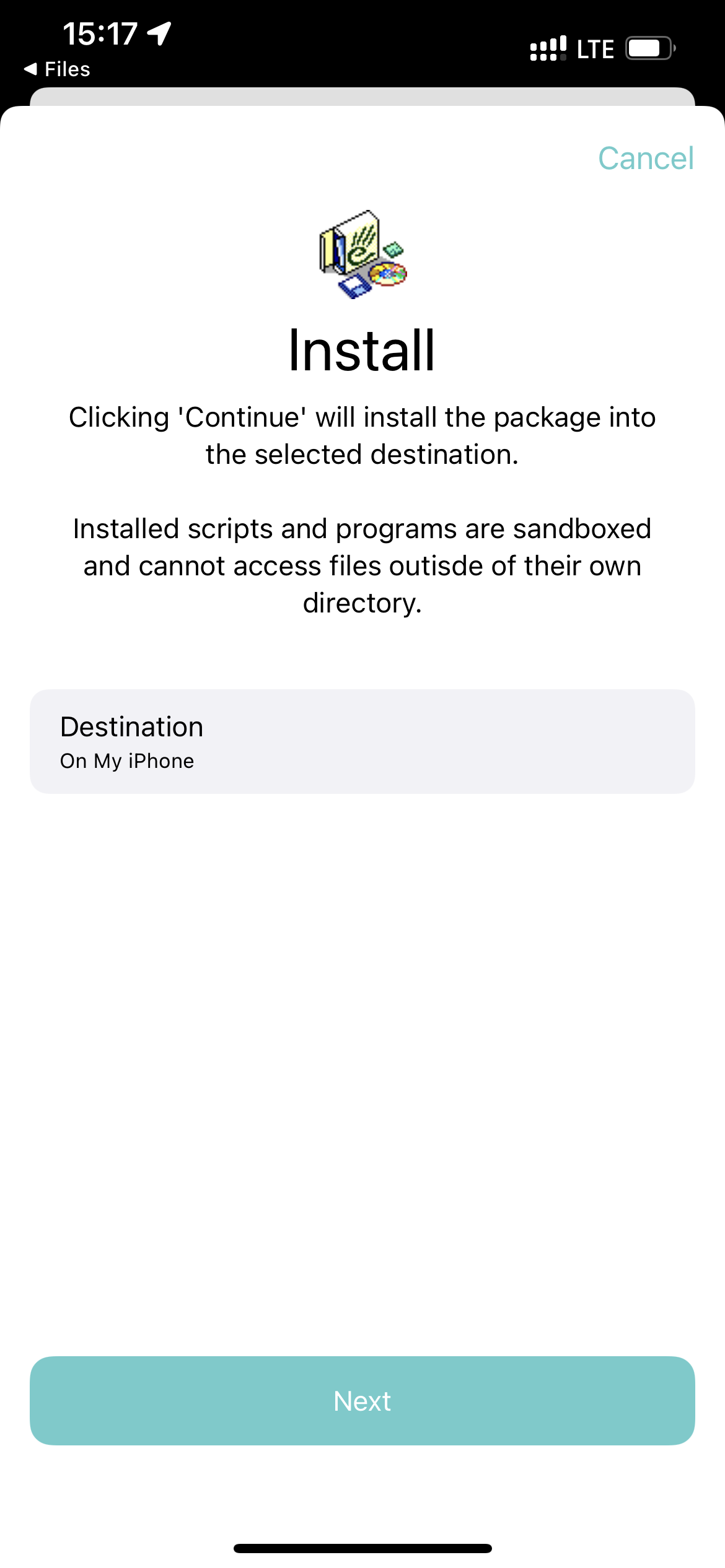
Select the destination you’d like to install your program to and tap ‘Next’:
-
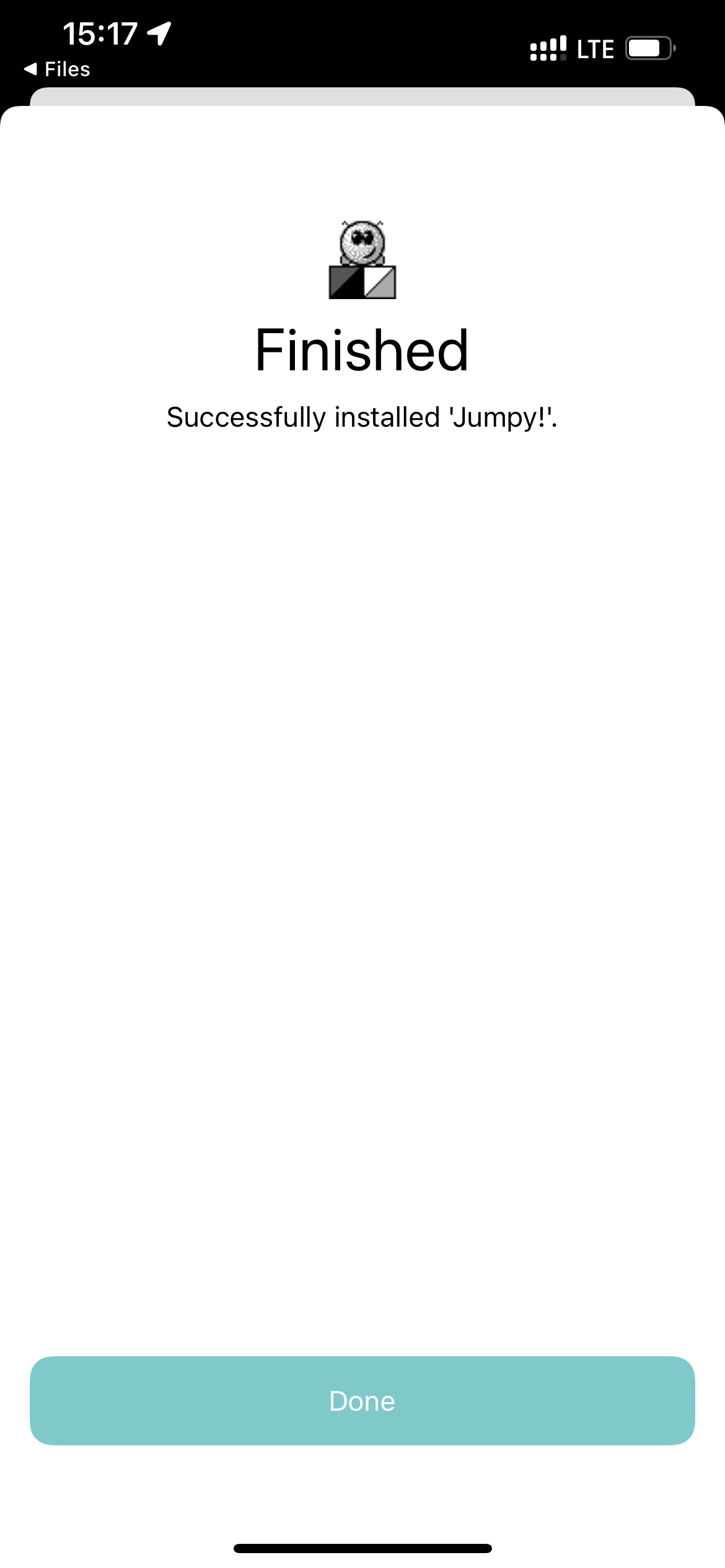
If everything has gone to plan 🤞, you should see a summary screen displaying the icon of your newly installed program:
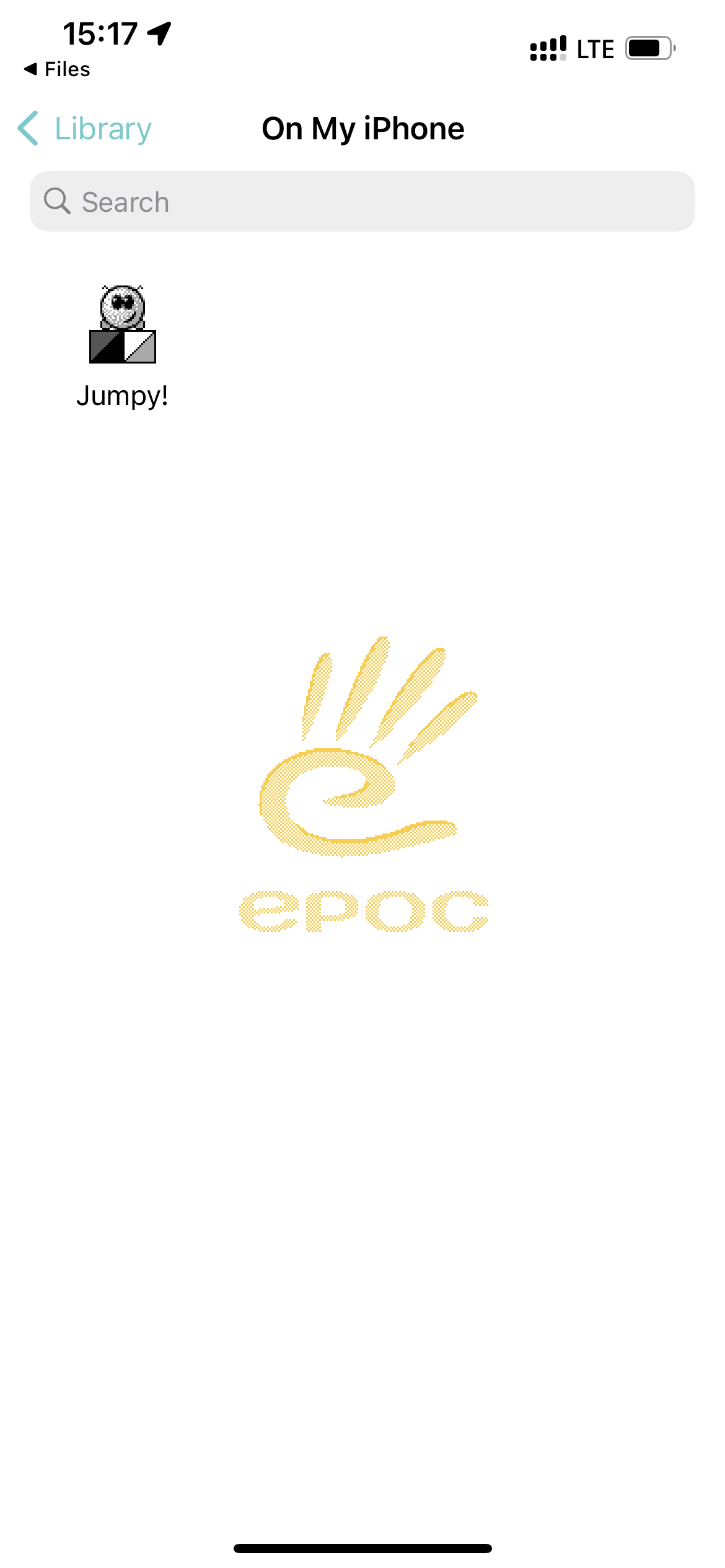
Tap ‘Done’ to reveal the program in OPL.
-
Tap the program icon to run it:
If you don’t have an installer for the program and only have eg a ZIP of the app directory, you will have to manually construct the correct filesystem layout to be recognized as an program bundle, copy that bundle to eg an iCloud Drive location, then add that location to OpoLua using the “+” toolbar item on the Library screen. The correct layout for an OPL program bundle is:
<appname>.system
|- c
   |- System
      |- Apps
         |- <appname>
            | files for the app go here, such as <appname>.app, <appname>.aif etc
You must make a separate bundle for each program; installing multiple programs in a single bundle is not currently supported.